Keyboard Shortcuts

Written by jon on 9:35 AM

Learning a few quick-key secrets can make you look like a computer expert too, and save you seconds when you need something finished fast. Here are a few tips to help you speed up your computing.

Turn back the clock: Ctrl-Z

We have all done it; deleted the wrong text, changed the wrong formula in a spreadsheet, or formatted text in Word and messed up a whole document layout.

Using the Ctrl-Z quick-key combination will save you time and frustration. This is an excellent time-saver; once you know it, you’ll wonder how you ever survived without it. Simply hit the Control key and Z to undo any mistake you make. This is great for when you cut-and-paste the wrong data into a Microsoft Excel file or accidentally delete a paragraph from a Microsoft Word document. Also repeat the key presses to go back a few stages to a previous version of a document.

And just as useful, Control key and Y ‘undoes the undo’, i.e. it puts it back again if you undo one stage too far!

From upper case to lower easily: CTRL-SHIFT-A

One of the more time-consuming things we often have to do is restyle copy from upper case to lower case, or vice-versa, when preparing a presentation or business proposal.

Rather than spend all that time retyping the headline, sentence, paragraph or page, simply highlight the words you want changed and hit your Control key with the Shift button and A – you’ll toggle between upper and lower case copy in an instant.

Minimise everything: Windows key-M

On a busy day you can often have ten or more windows open on your PC. Accessing your desktop in these circumstances can be a lengthy process as you click away each individual window. But you can actually minimise all windows in the blink of an eye by hitting the Windows key and M together.

For when time stands still: Ctrl-Alt-Del

It is unfortunately possible for applications on older model PCs to freeze and force you to wait while your PC troubleshoots. For example, Word can sometimes lock up when opening a corrupted document or one in a new format that an older model PC can’t read. This is doubly frustrating if it happens when you are racing to meet a deadline. (Hint - call CSS to get your PC upgraded if this happens often!)

The Control/Alt/Delete shortcut is helpful in these situations because it takes you straight to Task Manager, where you can immediately shut down and then re-start applications that are experiencing difficulties.

This handy combination also gives you the option of locking your computer, logging off, shutting down, or changing your password.

Magic Text resizer

Finally my favourite, and one which never fails to impress anyone watching - resizing text in Word.

When you are laying out a flyer or a brochure, you often need to get text to just the right size to fit in with graphics or text boxes. Highlight the text, and press Control and [ or Control and ] to decrease/increase the point size one at a time. The text will magically grow or shrink as you tap the keys, and makes it dead easy to fit text into a certain space.

More shortcuts:

  • CTRL-C = Copy
  • CTRL-X = Cut
  • CTRL-V = Paste
  • CTRL-A = Highlight all (for instance a whole Word document to change a font size or style)
  • CTRL-ESC = Open Start Menu, use the arrow keys to select an item
  • F1 = Help
  • F2 = Rename an item
  • F3 = Open Find All Files dialog
  • ALT-F4 = Close the current window, or quit the current program
  • SHIFT-F4 = Automatically repeats the previous Find command in Word
  • F5 = Refresh Screen
  • ALT-F6 = Switch between multiple windows in the same program
  • F10 = Activate the menu bar in a program
  • SHIFT-DEL = Delete items permanently

With these speedy keyboard tips, you will soon be tapping out impressive shortcuts that help you get more done in less time.

CASCADING STYLE SHEETS TUTORIAL

Written by jon on 9:21 AM

In this CSS tutorial I will not be able to show you everything there is about CSS, but you will learn how to create nice looking CSS styled web pages.

After completing this tutorial, you should have enough information to explore CSS and web design even further.

  • You can download the CSS and HTML files we build in this tutorial: CSS files
  • You can check out what the page should look like here: CSS example page

THINGS TO REMEMBER ABOUT CSS:

Remember that CSS code is simply written instructions that tells Web browsers (like FireFox and Internet Explorer) how to display things on a page. For example:

  1. make text bold.
  2. position things a page.
  3. set the font style for a page or paragraph etc.

The sister language to CSS is HTML: code that tells the Web browser WHAT is actually in the page.

... I know you knew that already, I just wanted to remind you!

CSS REDUCES THE NUMBER OF TAGS USED

Because of the power of CSS, we will be able to reduce the number of HTML tags we use in a page big time, all the while still being able to layout great looking pages using only 6 types (for lack of better words) of HTML tags.

The tags we will use to layout the content:

1. The Heading tags which range from '' to '', are going to be used to mark/tag headings in our pages. So the most important heading will be wrapped in a

tag and the least important in a

tag.

An example of a heading:

CSS Template Layout

This tells the browsers and the search engines too, that this page is primarily about: 'CSS Template Layout'

All browsers have a default size (for each tag) as to how it renders text when placed between these tags. Many of these defaults can be unusable (especially

) because they come out too big. But never fear, CSS is here. We will use CSS to make the text sizes more to our liking.

2.

The Paragraph tag is used to mark parts of the pages as being 'paragraphs', simple enough. Paragraph tags are what they call a 'block element'; that means that it acts like a block where a space is automatically inserted before and after each

tag pair. You see it work in the examples coming up.

3.

Arrow Bullet List Menu

Written by jon on 12:10 PM

This CSS list menu features category headers with a two toned background, UL elements that have their default margins and padding removed, and finally, LI elements with custom bullet images. The result is something simple but elegant, and resembling something you might have seen on this site already! Note: For a version of this menu that dynamically expands and hides its sub menus, see Accordion Menu.

Demo:

The two images used:

The CSS:

The HTML:

png transparency problems

Written by jon on 12:04 PM

If you are CSS coder, you've probably ran in to png transparency problems many times. Even Microsoft is having problems with it http://runonce.msn.com/runonce2.aspx open in IE6. So I'll tell you few problems and solutions I've handled so far.

First one is if you need just simple transparent image, without some special needs for example backgrounds etc. The solution would be png fix. I've used it many times but it has lots of faults, for example with padding, margins and absolute positioning. Sometimes i can mess up the rest of your JavaScript files, but anyway very useful script. You can download it here http://homepage.ntlworld.com/bobosola/pngfix.js and just include it in your tag

PNG

The second one can partly handle issues from first and it's pure CSS solution. I mostly use this for backgrounds, because if your path for a background is from CSS file then png fix can't handle it.


.someelement {

background-image: url(images/image.png);
}

* html .someelemen {
background-color: #333;
back\ground-color: transparent;
background-image: url(images/blank.gif);
filter: progid:DXImageTransform.Microsoft.
AlphaImageLoader(src="images/image.png", sizingMethod="scale");
}

I found this very useful, and also when you add some hover effects for example some color or other image. You can see live example here
NOTE: This simple hover is just example and it doesn't work in IE6

.someelement:hover {

background: #333;
}

.someelement:hover {
background-image: url(images/image2.gif);

}

Only problem I had with this was with tag, link just don't work (when it's in div with this kind of background) and i don't know why (talking again for IE6). And only solution i could think of was to place another absolute div over it for the links, content etc... Yes i know it's not elegant but it works if content is not dynamic.

Most used CSS Tricks

Written by jon on 11:49 AM

Earlier before I have written an article about current best CSS hacks which you can see here And now here’s the list of today’s most used CSS tricks – tips. I have added image examples for most of them because of critics on CSS hacks article. If you think I have missed any please let me know

1. Rounded corners without images

"container">
"rtop">
"r1"> "r2"> "r3"> "r4">


"rbottom">
"r4"> "r3"> "r2"> "r1">


.rtop, .rbottom{display:block}
.rtop *, .rbottom *{display: block; height: 1px; overflow: hidden}
.r1{margin: 0 5px}
.r2{margin: 0 3px}
.r3{margin: 0 2px}
.r4{margin: 0 1px; height: 2px}

Rounded corners without images

2. Style your order list


  1. This is line one


  2. Here is line two


  3. And last line


ol {
font: italic 1em Georgia, Times, serif;
color: #999999;
}

ol p {
font: normal .8em Arial, Helvetica, sans-serif;
color: #000000;
}

Style your order list

3. Tableless forms


"name" name="name">


"address" name="address">


"city" name="city">


label,input {
display: block;
width: 150px;
float: left;
margin-bottom: 10px;
}

label {
text-align: right;
width: 75px;
padding-right: 20px;
}

br {
clear: left;
}

CSS Tableless forms

4. Double blockquote

blockquote:first-letter {
background: url(images/open-quote.gif) no-repeat left top;
padding-left: 18px;
font: italic 1.4em Georgia, "Times New Roman", Times, serif;
}

Double blockquote

5. Gradient text effect

CSS Gradient Text


h1 {
font: bold 330%/100% "Lucida Grande";
position: relative;
color: #464646;
}
h1 span {
background: url(gradient.png) repeat-x;
position: absolute;
display: block;
width: 100%;
height: 31px;
}


Gradient text effect

6. Vertical centering with line-height

div{
height:100px;
}
div *{
margin:0;
}
div p{
line-height:100px;
}

Content here

Vertical centering with line-height

7. Rounded corners with images

"roundcont">
"roundtop">
"tl.gif" alt=""
width="15" height="15" class="corner"
style="display: none" />


CONTENT
"roundbottom">
"bl.gif" alt=""
width="15" height="15" class="corner"
style="display: none" />


.roundcont {
width: 250px;
background-color: #f90;
color: #fff;
}

.roundcont p {
margin: 0 10px;
}

.roundtop {
background: url(tr.gif) no-repeat top right;
}

.roundbottom {
background: url(br.gif) no-repeat top right;
}

img.corner {
width: 15px;
height: 15px;
border: none;
display: block !important;
}

Rounded corners with images

8. Multiple class name

"image.gif" class="class1 class2" alt="" />

.class1 { border:2px solid #666; }
.class2 {
padding:2px;
background:#ff0;
}
9. Center horizontally

"container">


#container {
margin:0px auto;
}

Center horizontally

10. CSS Drop Caps

"introduction"> This paragraph has the class
"introduction".
If your browser supports the pseudo-class
"first-letter", the first letter will be a drop-cap.

p.introduction:first-letter {
font-size : 300%;
font-weight : bold;
float : left;
width : 1em;
}

CSS Drop Caps

11. Prevent line breaks in links, oversized content to brake

a{
white-space:nowrap;
}

#main{
overflow:hidden;
}
12. Show firefox scrollbar, remove textarea scrollbar in IE

html{
overflow:-moz-scrollbars-vertical;
}

textarea{
overflow:auto;
}

CSS HACKS

Written by jon on 11:47 AM

If you are front end coder you must know how important is to make cross browses, valid CSS and xHTML code. And also you must know how much time we are spending in all those hacks and fixes for various browsers. I've written about some of them earlier on PNG transparency issues, Yellow fields in web form, Vertical align div etc..

Here is the list of 10 hand picked CSS hacks and tricks which can help you in your CSS code and also save some time.

1. Vertical align div

http://stylizedweb.com/2008/02/01/vertical-align-div/

2. Min-Height

selector {
min-height:500px;
height:auto; !important
height:500px;
}
3. PNG transparency

http://stylizedweb.com/2007/12/30/png-transparency-issues/

4. Autoclear

.container:after {
content: ".";
display: block;
height: 0;
clear: both;
visibility: hidden;
}
.container {display: inline-table;}
/* Hides from IE-mac \*/
* html .container {height: 1%;}
.container {display: block;}
/* End hide from IE-mac */
5. Reset CSS

html, body, div, span,
applet, object, iframe,
h1, h2, h3, h4, h5, h6, p,
blockquote, pre, a, abbr, acronym,
address, big, cite, code, del, dfn, em,
font, img, ins, kbd, q, s, samp, small,
strike, strong, sub, sup, tt, var, dl, dt,
dd, ol, ul, li, fieldset, form, label, legend,
table, caption, tbody, tfoot, thead, tr, th,
td {
border:0pt none;
font-family:inherit;
font-size:100%;
font-style:inherit;
font-weight:inherit;
margin:0pt;
outline-color:invert;
outline-style:none;
outline-width:0pt;
padding:0pt;
vertical-align:baseline;
}
table {
border-collapse:separate;
border-spacing:0pt;
}
caption, th, td {
font-weight:normal;
text-align:left;
}
blockquote:before, blockquote:after, q:before, q:after {
content:"";
}
blockquote, q {
quotes:"" "";
}
strong {
font-weight:bold;
}
em {
font-style:italic;
}
* {
margin:0pt;
padding:0pt;
}
6. Scrolling Render IE

html {
background : url(null) fixed no-repeat;
}
7. Opacity

#transdiv {
filter:alpha(opacity=75);
-moz-opacity:.75;
opacity:.75;
}
8. PRE Tag

pre {
white-space: pre-wrap; /* css-3 */
white-space: -moz-pre-wrap !important; /* Mozilla, since 1999 */
white-space: -pre-wrap; /* Opera 4-6 */
white-space: -o-pre-wrap; /* Opera 7 */
word-wrap: break-word; /* Internet Explorer 5.5+ */
}
9. Li Background Repeat IE


10. Good to know

@charset "UTF-8";

/* ----------------------------------------------------------------------
WinIE7
---------------------------------------------------------------------- */

*:first-child+html selector{property:value;}

/* ----------------------------------------------------------------------
WinIE6 & Mac IE
---------------------------------------------------------------------- */

* html selector{property:value;}

/* ----------------------------------------------------------------------
WinIE6
---------------------------------------------------------------------- */

/*\*/
* html selector{property:value;}
/**/

/* ----------------------------------------------------------------------
MacIE
---------------------------------------------------------------------- */

/*\*//*/
selector{property:value;}
/**/

CSS and Round Corners: Build Boxes with Curves

Written by jon on 11:44 AM

One of the main reasons why designers use images on a Web page is to create curves and round corners. It's currently impossible to create any kind of curved shapes using pure HTML, so images need to be applied.

The problem? Putting these images into an HTML document with a table layout can create a large amount of superfluous code. In this tutorial, we'll use CSS to create this box with round corners, without an tag in the SitePoint HTML Reference." href="http://reference.sitepoint.com/html/img"> tag in sight!

How it Works

The above is basically a normal box that has an orange background colour, over which four corner images are superimposed. All these images have been called up through CSS commands.

So, we start off with the following snippet:

Lorem ipsum dolor sit amet consectetur adipisicing elit

We've used class="bl" as we're going to assign our bottom right corner to this tag in the SitePoint HTML Reference." href="http://reference.sitepoint.com/html/div">

through a CSS command. As a rule, you can only assign one background image to an HTML tag using CSS, so this is the only image we'll assign to this tag in the SitePoint HTML Reference." href="http://reference.sitepoint.com/html/div">
.

1465_1bl (click to view image)


We'll use the above image, called bl.gif, which we'll place in the bottom-left corner with the following CSS command:

.bl {background: url(bl.gif) 0 100% no-repeat; width: 20em}

The CSS background command is broken into three sections: the image URL, its position, and a repeat command. We also inserted a width CSS command so that the box doesn't cover the whole of the screen. Let's examine the three background commands in turn:

  1. Image URL - Remember, the image is being called through the CSS, so the path to the image must be the path from the CSS document, not the HTML document.
  2. Image Position - In this example, we've used the command 0 100% in our CSS rule. The first number represents the distance from the left edge of the
    ; the second number identifies the distance from the top edge. In this instance % was used, but a different distance value, such as em or px, could just as easily have been used instead. If this command was left out, the default value, 0 0, would be used, and the image would be placed in the top-left corner.
  3. Repeat Command – Obviously, we don't want this image to repeat, so we insert the no-repeat CSS command. If we wanted to, we could have used repeat-x, to repeat the image horizontally, repeat-y, to repeat it vertically, and repeat to repeat it both horizontally and vertically. If this command was left out, the default value, repeat, would be used.

It doesn't matter in which order these three CSS background commands are placed. Our box with curves now looks like this.

Bottom-Right Curve

Next, we'll stick in that bottom-right curve. As previously mentioned, we can only assign one background image to each tag in the SitePoint HTML Reference." href="http://reference.sitepoint.com/html/div">

in the CSS, so we'll need to insert a new tag in the SitePoint HTML Reference." href="http://reference.sitepoint.com/html/div">
:


Lorem ipsum dolor sit amet consectetur adipisicing elit

Here's the image we'll use:

1465_1br (click to view image)

Naming this bottom-right image br.gif, we'll insert a new CSS rule:

.br {background: url(br.gif) 100% 100% no-repeat}

This CSS rule is essentially the same as the last one, although now we've changed the position from the left to 100%, where previously it was 0%. The box now looks like this.

Top Curves

To make our top curves, we'll need two new images:

1465_1tl (click to view image)

1465_1tr (click to view image)

We'll call these tl.gif and tr.gif. We'll need to create two new tag in the SitePoint HTML Reference." href="http://reference.sitepoint.com/html/div">

s for them:


Lorem ipsum dolor sit amet consectetur adipisicing elit

The new CSS rules are as follows:

.tl {background: url(tl.gif) 0 0 no-repeat}
.tr {background: url(tr.gif) 100% 0 no-repeat}

These give us this display.

Background Colour

We'll now insert our orange background colour into the box, in order to achieve the whole round corners effects.

The background colour must always be assigned to the very first CSS rule. This is because each CSS background rule is essentially a layer on top of the previous one. So, in this example, we have a layering order of br.gif, bl.gif, tl.gif and then tr.gif. But, in this example, the images don't overlap, so we don't really notice this layering effect.

By default, a background colour covers the entire tag in the SitePoint HTML Reference." href="http://reference.sitepoint.com/html/div">

and will layer on top of any other previously assigned background images and/or colours. Therefore, if we place the orange colour in any tag in the SitePoint HTML Reference." href="http://reference.sitepoint.com/html/div">
other than the first, it will be placed on top of the preceding images and will essentially cause them to disappear. Therefore, we must place our orange background colour (#e68200) in the very first CSS rule:

.bl {background: url(bl.gif) 0 100% no-repeat #e68200; width: 20em}

As before, it doesn't matter where we place this colour command within the CSS background rule. Our box now looks like this.

Padding

Padding is needed to prevent the text from overlapping on to the images, which are 10px x 10px in size. Therefore, we need 10px-worth of padding on the text. But to which tag in the SitePoint HTML Reference." href="http://reference.sitepoint.com/html/div">

should we assign the padding CSS rule? Does it matter? Well, yes it does.

Whichever element we assign padding to, each of the elements inside it will inherit that padding. If we were to assign padding to the very first tag in the SitePoint HTML Reference." href="http://reference.sitepoint.com/html/div">

,
, we'd get this effect.

To get this padding to work properly, we need to assign it to the very last tag in the SitePoint HTML Reference." href="http://reference.sitepoint.com/html/div">

,
:

.tr {background: url(tr.gif) 100% 0 no-repeat; padding:10px}

Here's how it looks now.

Internet Explorer Issues

You may have noticed the bottom corners were called up before the top corners. If we were to do things the other way round, that is, call the top corners first, some parts of the orange background colour would sneak out under the bottom curves, causing a rather unsightly effect. Switch the order of the tag in the SitePoint HTML Reference." href="http://reference.sitepoint.com/html/div">

s around and see for yourself.

Another issue in Internet Explorer is that the background colour of the box sometimes overlaps on to the element below, again causing an unattractive effect. This can be solved simply by placing a tiny placeholder beneath the box with round corners. Immediately after the fourth closing

, insert the following HTML:

Now, assign it this CSS rule:

.clear {font-size: 1px; height: 1px}

The Final Code

Our finished HTML now looks like this:


Lorem ipsum dolor sit amet consectetur adipisicing elit

Here's the CSS that makes it all happen:

.bl {background: url(bl.gif) 0 100% no-repeat #e68200; width: 20em}
.br {background: url(br.gif) 100% 100% no-repeat}
.tl {background: url(tl.gif) 0 0 no-repeat}
.tr {background: url(tr.gif) 100% 0 no-repeat; padding:10px}
.clear {font-size: 1px; height: 1px}

CSS and Round Corners: Build Accessible Menu Tabs

Written by jon on 11:42 AM

One of the best Websites out there, in terms of functionality, is Amazon.

In terms of accessibility, though, it's not great.

The Problem

Amazon's menu tabs, with their nice round corners, look good -- but they're totally inaccessible. First of all, they're missing ALT tags. Additionally, the W3C accessibility guideline 3.1 (priority 2) clearly states:

When an appropriate markup language exists, use markup rather than images to convey information.

This basically means that we shouldn't use images to display text. Users with poor vision are unable to resize text that's displayed through images. Similarly, users of screen magnifiers may be unable to read text embedded in images, as it can appear blurry and pixelated to them.

The Solution: CSS Menu Tabs

CSS, as usual, comes to our rescue. Look at this menu tab, created through HTML and CSS -- not an tag in the SitePoint HTML Reference." href="http://reference.sitepoint.com/html/img"> tag in sight!

1388_home1 (click to view image)

Have a look at it in action -- when you do, adjust the text size in your browser. Notice that the menu tab increased in size with the text: it all fits perfectly.

Today, you're going to learn how to do this.

How It's Done

We start with a simple link:

We'll assign it this CSS code:

#navigation a
{
color: #000;
background: #fb0;
text-decoration: none
}


This gives us the following result:

1388_home2 (click to view image)

It needs a bit of work, right? Let's do it.

Add the Left Menu Tab Corner

We need to make a small image with the same colour for the rounded left-hand corner. Here's one I made earlier.

1388_taborangeleft (click to view image)

Let's call this image left-tab.gif and place it into the background of the link using this CSS rule:

#navigation a
{
color: #000;
background: #fb0 url("left-tab.gif") left top no-repeat;
text-decoration: none
}

This new CSS rule says that the background image should be left-menu-tab.gif, the image should be on the left at the top, and it shouldn't be repeated. The result?

1388_home3 (click to view image)

We're getting there, but we need to move the text over slightly as it's overlapping the left rounded corner. It's pretty simple to reposition the text with the addition of padding to our CSS rule:

#navigation a
{
color: #000;
background: #fb0 url("left-tab.gif") left top no-repeat;
text-decoration: none;
padding-left: 10px
}

1388_home4 (click to view image)

The Right Corner

We can only assign one background image to a CSS rule, so we need to make a new CSS rule and assign the right corner image to that. We'll start by inserting a tag in the SitePoint HTML Reference." href="http://reference.sitepoint.com/html/span"> tag into the HTML code:

Now we'll create a new CSS rule in which we'll assign the right menu tab shown below (another one I made earlier) to the tag in the SitePoint HTML Reference." href="http://reference.sitepoint.com/html/span">, and we're ready to go!

1388_taborangeright (click to view image)

We'll name this image right-tab.gif.

#navigation a span
{
background: url("right-tab.gif") right top no-repeat;
}

This CSS rule means that every tag in the SitePoint HTML Reference." href="http://reference.sitepoint.com/html/span"> tag within an tag in the SitePoint HTML Reference." href="http://reference.sitepoint.com/html/a"> tag will have this image as its background. The final result looks like this:

1388_home5 (click to view image)

Perfect... No, wait a minute! Can you spot why it's not so perfect? We forgot to assign some padding to that tag in the SitePoint HTML Reference." href="http://reference.sitepoint.com/html/span"> tag in the CSS rule:

#navigation a span
{
background: url("right-tab.gif") right top no-repeat;
padding-right: 10px
}

This code gives us:

1388_home1 (click to view image)

Now, that really is perfect! Have a look at the results here and resize the text to see how it looks.

The Final CSS Touches

Let's assign this link a nice hover effect using a few final CSS rules. We'll need a couple more background images:

1388_tabblueleft (click to view image)

We'll call this left-tab-hover.gif.

1388_tabblueright (click to view image)

This one's named right-tab-hover.gif.

Now, we just insert the following CSS rules, and away we go!

#navigation a:hover {
color: #fff;
background: #fb0 url("left-tab-hover.gif") left top no-repeat;
text-decoration: none;
padding-left: 10px
}

#navigation a:hover span
{
background: url("right-tab-hover.gif") right top no-repeat;
padding-right: 10px
}

Have a look at this code in action -- be sure to mouse over it!

Make a Tab Menu

Now we've done all the hard work, we can make as many of these menu tabs as we want:

1388_nav (click to view image)

See the nav in action -- be sure to mouse over the nav items!

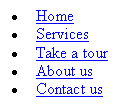
Looks great, doesn't it? Note, though, that building your menu this way does bring up a new accessibility problem: this navigation won't make sense to anyone who has disabled CSS. Without CSS, the navigation looks like this:

1388_nocssnav (click to view image)

That's quite a problem. The solution? Let's put the tabs into a list! The HTML will look like this:

<ul id="navigation">
<li>Home</li>
<li>Services</li>
<li>Take a tour</li>
<li>About us</li>
<li>Contact us</li>
</ul>


Now, let's create some CSS rules for our list items, so that all the menu tabs display next to one other on the same line:

#navigation
{
list-style: none;
padding: 0;
margin: 0;
}

#navigation li
{
float: left;
display: block;
margin: 0;
padding: 0;
}

To get rid of the bullets, we used the CSS command, list-style: none. To display our menu tabs inline, stacked next to each other, we used float: left.

At this point, some of the more expert CSS coders may question the point of keeping the tag in the SitePoint HTML Reference." href="http://reference.sitepoint.com/html/span"> tag, especially those who've read Doug Bowman's Sliding Doors article. The reason we leave in the tag in the SitePoint HTML Reference." href="http://reference.sitepoint.com/html/span"> tag is to make the entire menu tab clickable. If we were to assign one of the corners to tag in the SitePoint HTML Reference." href="http://reference.sitepoint.com/html/li">

  • as a background image, that corner wouldn't be clickable.

    IE 5.x Problems

    Unfortunately, these tabs won't work on IE 5.0 on PC (and a couple of other browsers), as the rounded edges of the tabs don't appear. As such, each menu tab will be displayed as a rectangle, with sharp corners. There's an easy solution to this, which is to insert display: block into the #navigation a and #navigation a span CSS commands.

    Sounds easy, right? Unfortunately, it's not. By inserting these commands into the CSS, IE 5 on Mac will stack the menu items on top of each other. To make these display properly for IE 5 on Mac, we'll need to also insert the float:left command, but apply it only to this browser. But how do we apply a CSS command to just one browser? Easy -- we use the commented backslash hack:

    #navigation a, #navigation a span
    {
    display: block;
    float: left
    }

    /* Commented backslash hack hides rule from IE5-Mac \*/
    #navigation a, #navigation a span
    {
    float: none
    }
    /* End IE5-Mac hack */

    The first CSS command says to float the menu tab content to the left, and the second CSS command cancels this out for every browser except IE 5 on Mac. When two CSS commands are specified for the same selector, the second one always takes precedence. However, IE 5 on Mac can't read the second command because of the slashes and stars, so defaults to the first CSS command. (If you really want to know how and why this works, read Commented Backslash MacIE5 CSS Hack by Sam Foster.)

    The Final Code

    The final HTML is:

    And here's the entire CSS code:

    #navigation a
    {
    color: #000;
    background: #fb0 url("left-tab.gif") left top no-repeat;
    text-decoration: none;
    padding-left: 10px
    }

    #navigation a span
    {
    background: url("right-tab.gif") right top no-repeat;
    padding-right: 10px
    }

    #navigation a, #navigation a span
    {
    display: block;
    float: left
    }

    /* Commented backslash hack hides rule from IE5-Mac \*/
    #navigation a, #navigation a span
    {
    float: none
    }
    /* End IE5-Mac hack */

    #navigation a:hover
    {
    color: #fff;
    background: #26a url("left-tab-hover.gif") left top no-repeat;
    text-decoration: none;
    padding-left: 10px
    }

    #navigation a:hover span
    {
    background: url("right-tab-hover.gif") right top no-repeat;
    padding-right: 10px
    }

    #navigation
    {
    list-style: none;
    padding: 0;
    margin: 0
    }

    #navigation li
    {
    float: left;
    display: block;
    margin: 0;
    padding: 0
    }

    The End Product... With and Without CSS

    Let's look at it one more time. First, the CSS version of the nav:

    1388_nav (click to view image)

    When CSS is disabled, it looks like this:

    1388_navdisabled (click to view image)

    Now, that really is accessible!

  • Style Web Forms Using CSS

    Written by jon on 11:40 AM

    Whether your main business is Web design or backend development, chances are you spend a fair amount of time creating forms for user input. So you already know that the default appearance of forms isn't always appropriate for the look and feel of your site.

    In this article we'll look at how you can use CSS to create attractive and usable forms.

    Styling Form Elements

    It's possible to change the default look of form elements by styling their html tags: input, select and textarea.

    The input Tag

    Defining rules for the input tag will change any instance of that tag in your document. For example, if I wish all elements to have a purple background, I could define the following in my style sheet.

    input {
    background-color: #666699;
    }

    This will add a purple background color to those elements that are marked up using the input tag.

    1166_image1 (click to view image)

    The select Tag

    The